


Hamersly Library
Search
Subject Guides
Course Guides
Help Lower Textbook Costs for Students
Are you an instructor who’s concerned about the impact of high textbook costs on your students?
Did You Know…
- The high cost of some course materials can impede students’ academic success.
- The cost of textbooks is rising at a rate of 4 times inflation.
- Seven out of 10 students don’t purchase a required textbook during their academic career because of cost.
- Sixty percent of students have delayed purchasing textbooks until they’ve received their financial aid.
Open Textbooks
Open textbooks can help alleviate the burden of textbook costs for students and provide faculty with content that can be customized for their course. Open textbooks are full, real textbooks, used by many faculty across the country, and licensed to be freely used, edited, and distributed.
What You Can Do
Attend Open Oregon's virtual Open Textbook Workshops. The one-hour session will provide information about open textbooks and how to find discipline-specific titles. After the workshop you can earn $200-$300 by writing a review of an open textbook or other open materials. If you have already attended a past workshop and want to write another review, contact Sue Kunda to request a new survey link.
Campus Printing FAQ
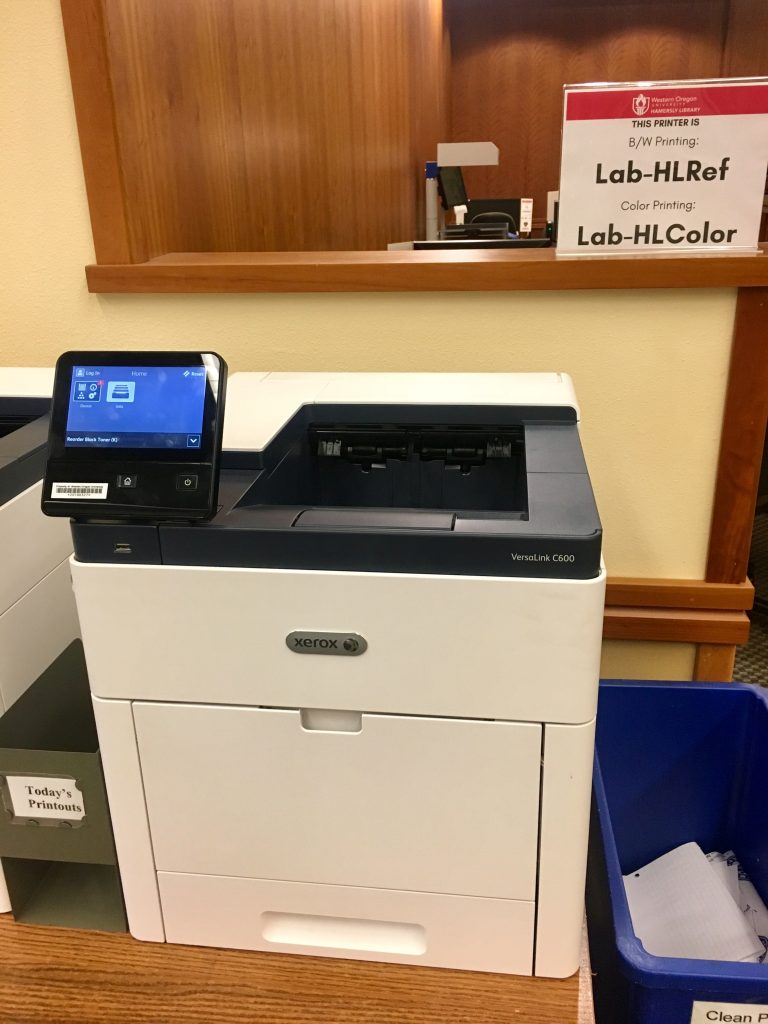
How much does printing cost? A single black and white page (one side) printout costs 1 print credit. A single color page (one side) printout costs 5 print credits. Students receive 225 print credits per term.
How do I know how many print credits I have? Log in to the WOU Portal and your balance will be displayed on your homepage.
How do I buy more print credits? Purchase additional credits through WolfWeb under the Student Menu. They start at 50 credits for $2.50 and go up from there. When you buy additional credits they are immediately available for use.
What if I don't use all of my print credits? Whatever credits you don't use roll over to the next term. However, accounts are zeroed out before each Fall term begins.
Phone
(503) 838-8418
Text/SMS: (503) 383-9681
Location
345 N Monmouth Ave
Monmouth, OR 97361
libweb@wou.edu
Typical Hours (2022)
M-W: 8am – 12am
R: 8am -9pm
F: 8am – 6pm
Sa: Closed
Su: 2pm- 12am




 EN
EN  ES
ES